Signin

TMD Suite – Delivery Partner Setup
To connect a Delivery / Courier Partner in the TMDSuite, follow these main paths:
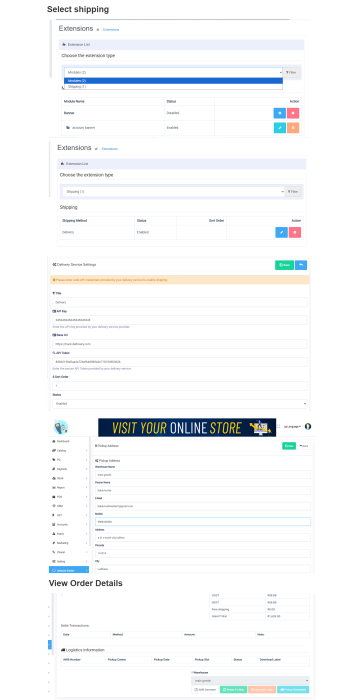
Extensions → Extensions → Shipping (Enable & configure delivery method)
Website Builder → Pickup Address (Add pickup/warehouse details)
Reports → Order List (Generate delivery labels after setup)
Enable Delivery / Courier Partner (Shipping Extension) Important: Create Courier Account First
Before configuring the delivery partner in TMDSuite, you must create an account with the selected courier/delivery service provider.
After account creation, the courier company will provide:
API Key
API Token / Authentication Credentials
Base URL / API Endpoint
These credentials are mandatory to connect the courier service with the TMDSuite Profile and enable delivery features.
Step 1: Open Shipping Extensions
Go to Extensions → Extensions
From Choose the extension type, select Shipping
You will see the available shipping methods.
Step 2: Select Delivery / Courier Partner
Locate Delivery (Courier Partner)
Ensure the Status is set to Enabled
Click on the Edit (✏️) button
Step 3: Configure Courier Company Details
Inside Delivery Service Settings, enter the courier partner information:
Title – Display name of the delivery service (e.g., Delivery / Courier Name)
API Key – API key provided by the courier company
Base URL – Courier API base URL (e.g., tracking or service URL)
API Token – Secure token provided by the courier partner
Sort Order – Priority order for checkout display
Status – Set to Enabled
⚠️ Note: Valid API credentials are mandatory to activate delivery services.
Click Save to store the courier partner configuration.
4. Add Pickup Address (Mandatory Step)
After configuring the courier partner, you must add a pickup address.
Navigation Path
Website Builder → Pickup Address
Step 1: Open Pickup Address Form
Go to the Website Builder menu
Click on Pickup Address
Step 2: Enter Pickup / Warehouse Details
Fill in all required pickup information:
Warehouse Name
Person Name (Contact person)
Email Address
Mobile Number
Address
Pincode / Zip Code
City
Country
Zone / State
Ensure all details match the courier partner records.
Click Save to confirm the pickup address.
5. Final Connection Confirmation
Once both steps are completed:
Courier partner API details are saved
Pickup address is added successfully
Your TMD Suite system is now connected with the Delivery / Courier Partner.
6. Generate Delivery Label from Orders
After successful integration, you can generate delivery labels directly from orders.
Order Flow
Go to Orders → Order List
Open a confirmed order
Select Generate Delivery Label
System sends order & pickup details to the courier API
Delivery label / AWB is generated
You can now:
Print shipping label
Track shipment using courier tracking
7. Delivery Charges Calculation
Delivery charges are calculated based on:
Configured delivery charge type
Distance between pickup address and delivery address
Order value (if applicable)
Charges are automatically added to the order bill.
8. Reports & Tracking (delivery partner panel)
After logging in to the delivery partner panel provided by the related delivery channel
Admins can view:
Total deliveries by partner
Completed vs failed deliveries
Delivery commission report
9. Edit / Disable Delivery Partner
Go to the Delivery Partners List
Click Edit to update details
Toggle Status to disable the partner temporarily
Disabled partners will not appear for new orders.
10. Common Issues & Troubleshooting
Courier not connecting?
Verify API Key and API Token
Check the Base URL provided by the courier
Delivery option not visible in orders?
Ensure Shipping → Delivery is Enabled
Confirm the Pickup Address is saved
Label generation failed?
Check order address completeness
Verify courier service availability for the pin code
11. Best Practices
Add multiple delivery partners for backup
Clearly define service areas
Regularly review delivery performance reports
Tags
- TMD Suite – Delivery Partner Setup