Signin

Product Catalog PDF Download
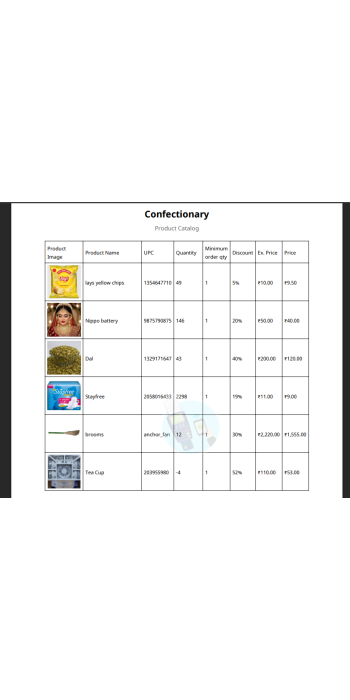
The PDF catalog allows customers to view and download a complete list of products with pricing, discounts, and images in a printable format.
1. Enable Catalog Download (Admin Settings)
Before customers can download the PDF catalog, the feature must be enabled by the store admin.
Navigation Path
Admin Panel → Website Builder → online store setting → General
Steps to Enable
Go to Website Builder from the left menu
Open Store Website and App Links
Select the General tab
Find the option Catalog Download
Set the value to Yes
Click Save
Once enabled, the catalog download option will appear on the store website.
2. Catalog Download on Store Website (Customer Side)
Where Customers See the Download Option
Visit the store website
Open any product category (e.g., Grocery, Confectionary, FMCG)
A Download button is displayed near the product listing controls (Sort / Show options)
Download Product Catalog PDF
Steps for Customers
Open the desired product category on the website
Click on the Download button
The system automatically generates a PDF Product Catalog
The PDF opens or downloads to the customer’s device
3. PDF Catalog Content
The generated PDF catalog includes:
Category Name
Product Image
Product Name
UPC / Barcode
Available Quantity
Minimum Order Quantity
Discount Percentage
Original Price
Final Price
This makes it easy for customers and bulk buyers to review products offline.
Use Cases
Share product list with customers via WhatsApp or Email
Offline price reference for sales teams
Bulk order planning for retailers
Printable catalog for in-store use
Tags
- Product Catalog PDF Download